Quick start for players
Join your table’s campaign and keep track of your character’s money and belongings, in about five minutes.
Read it online, with links: hoardwyn.com/quick-start/player
1Join the campaign
- Open the invite link your game master sent you.
- Make an account with your email address and a password, and enter the six-digit code we email you.
- Choose a display name, then “Join”.
Got a code instead of a link? Choose “Join with a code” on “Your campaigns” and enter it. Players never pay.
More in the help: Joining a campaign and making a character
2Put it on your home screen
On an iPhone or iPad: open hoardwyn.com in Safari, tap the Share button, then “Add to Home Screen”.
On Android: open hoardwyn.com in Chrome, tap the ⋮ menu, then “Add to home screen” or “Install app”.
It then opens full screen with its own icon, and you stay signed in. It needs an internet connection.
More in the help: Getting started
3Name your character
The campaign opens on its Overview, which asks you to name your character. Everything you carry and own belongs to it.
A true name is optional, and only you and the game master see it. Another character? People, “New character”.
More in the help: Joining a campaign and making a character
4What you carry
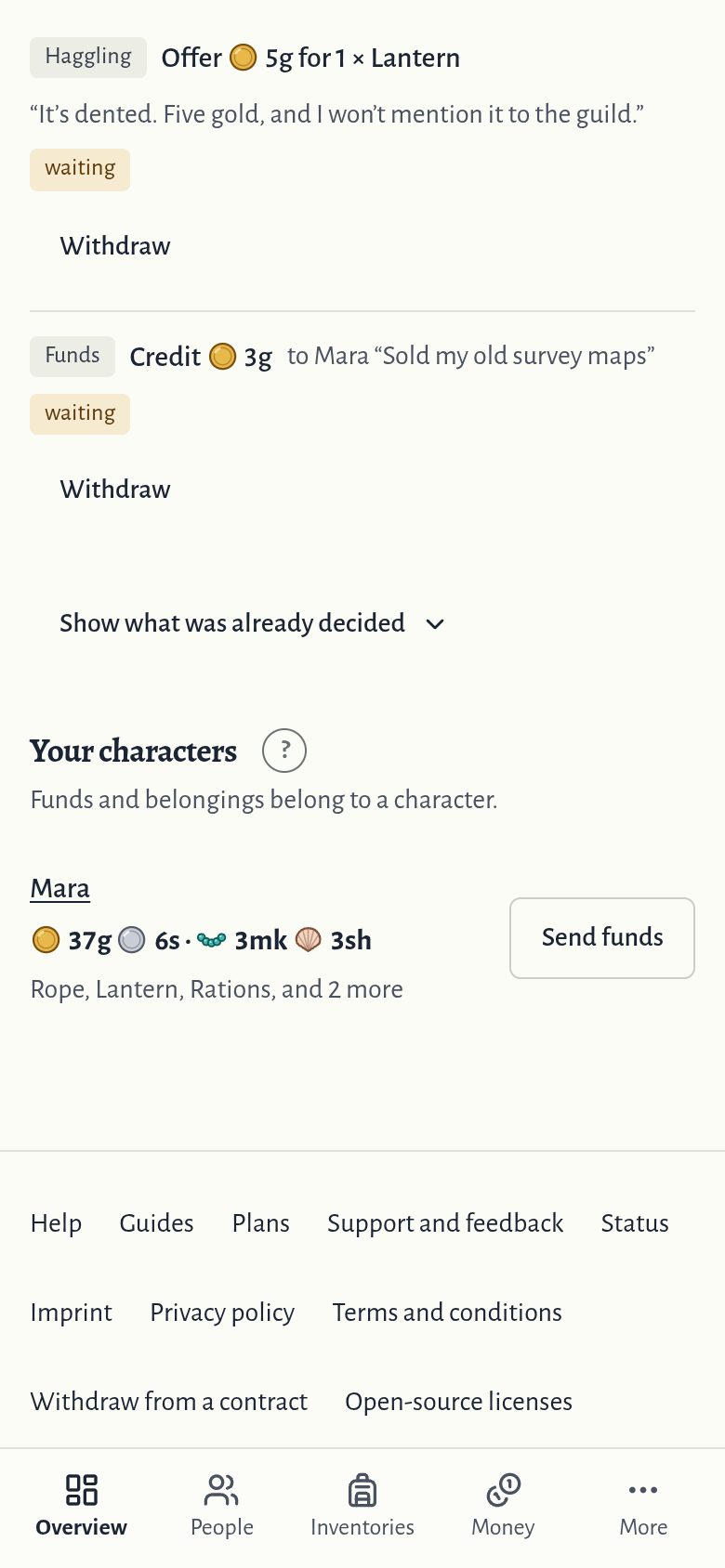
Your character’s belongings are on its page under People. “Add something” picks from the campaign’s catalog, or “Something not listed…” for anything else.
The + and − buttons add or take one.
“Move…” puts a line somewhere else: a shared chest, or another character, who gets it at once.
More in the help: Your belongings, Moving and giving things
5Your money
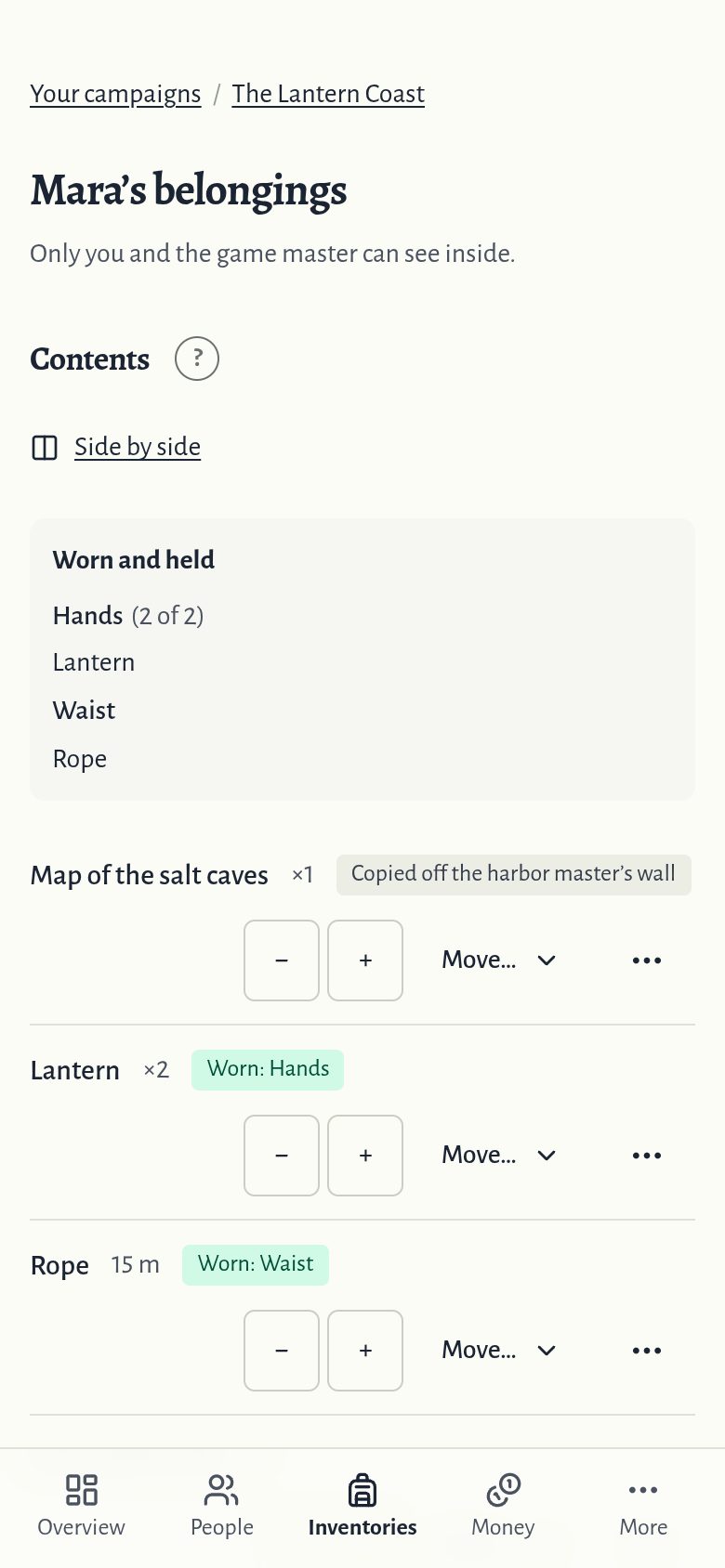
Funds, on your character’s page, show its balance. “Statement” lists every movement.
“Pay” spends money at once. “Send funds” moves it to another character or a shared purse.
Money comes into the campaign through the game master: “Ask for funds” asks them for a reward or a payout.
More in the help: Money, Shared purses
6Shopping
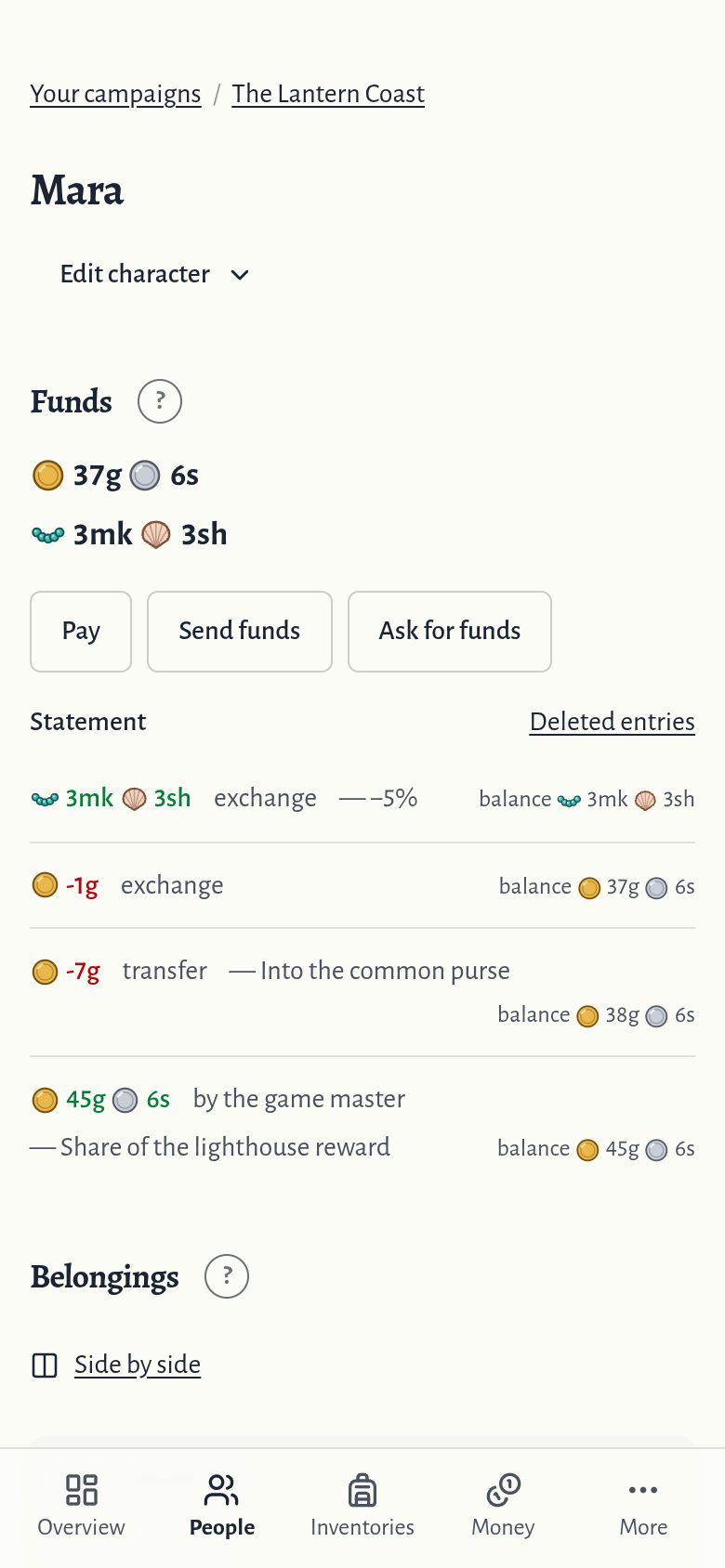
The Shops tab lists the shops your game master opened. “Buy” pays at once and puts it in your belongings.
“Haggle…” offers your own price instead. Nothing is paid until the game master agrees.
A shop marked “Closed for now” can be looked at but not traded with until the game master opens it.
More in the help: Shops
7Rolling dice
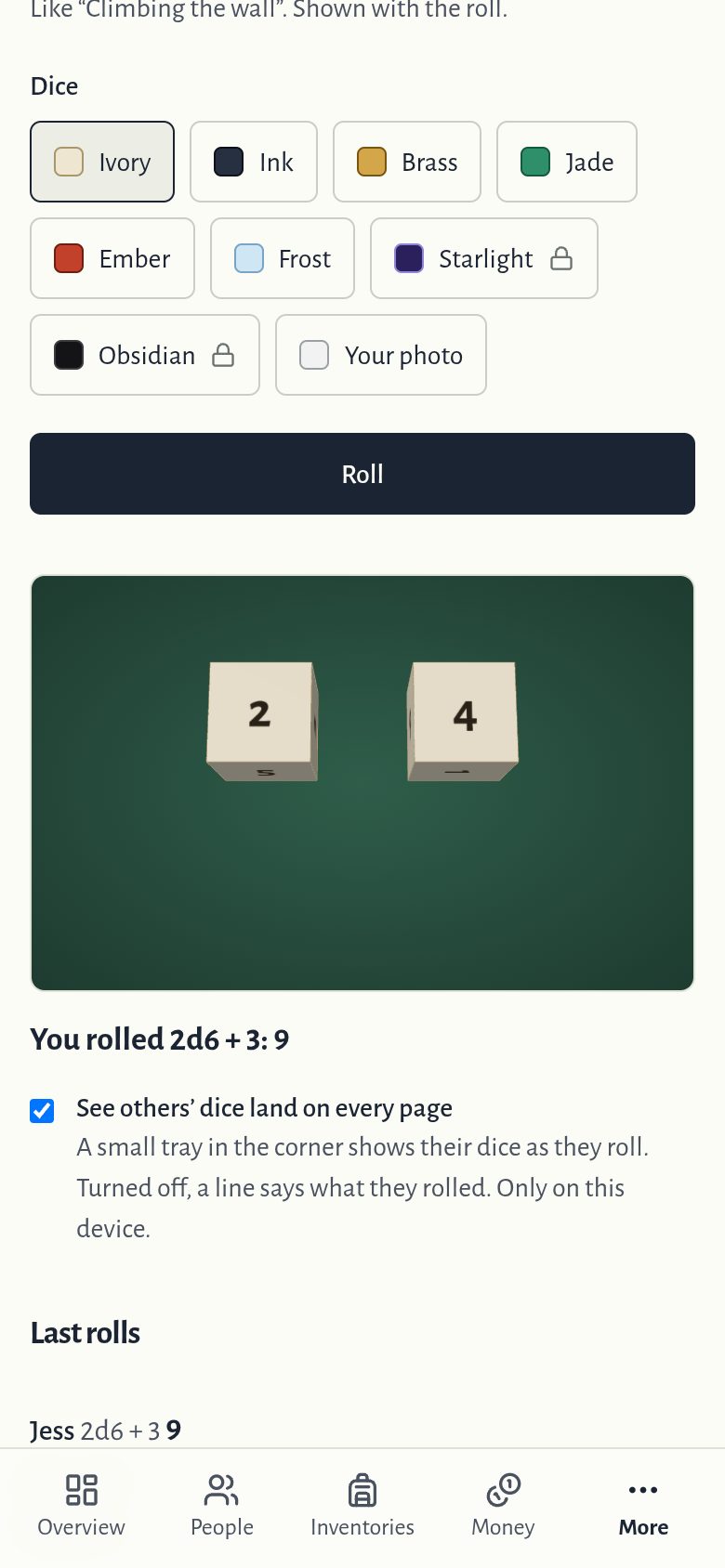
The Dice tab rolls for the whole table: write a roll like 2d6+3, or tap the dice, and choose “Roll”.
Everyone sees the result at once, with the dice landing in 3D, and the campaign keeps its last 100 rolls.
More in the help: Rolling dice
8When the game master decides
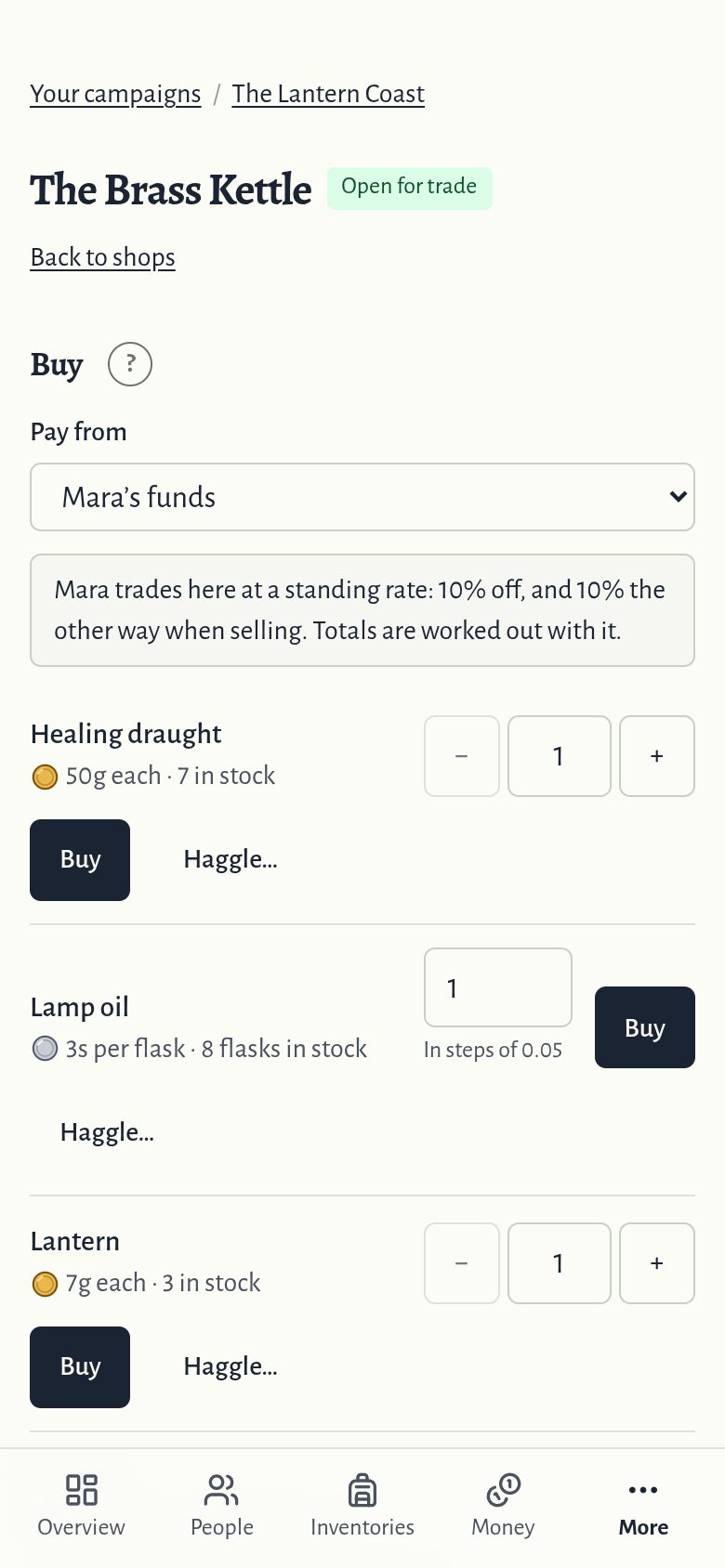
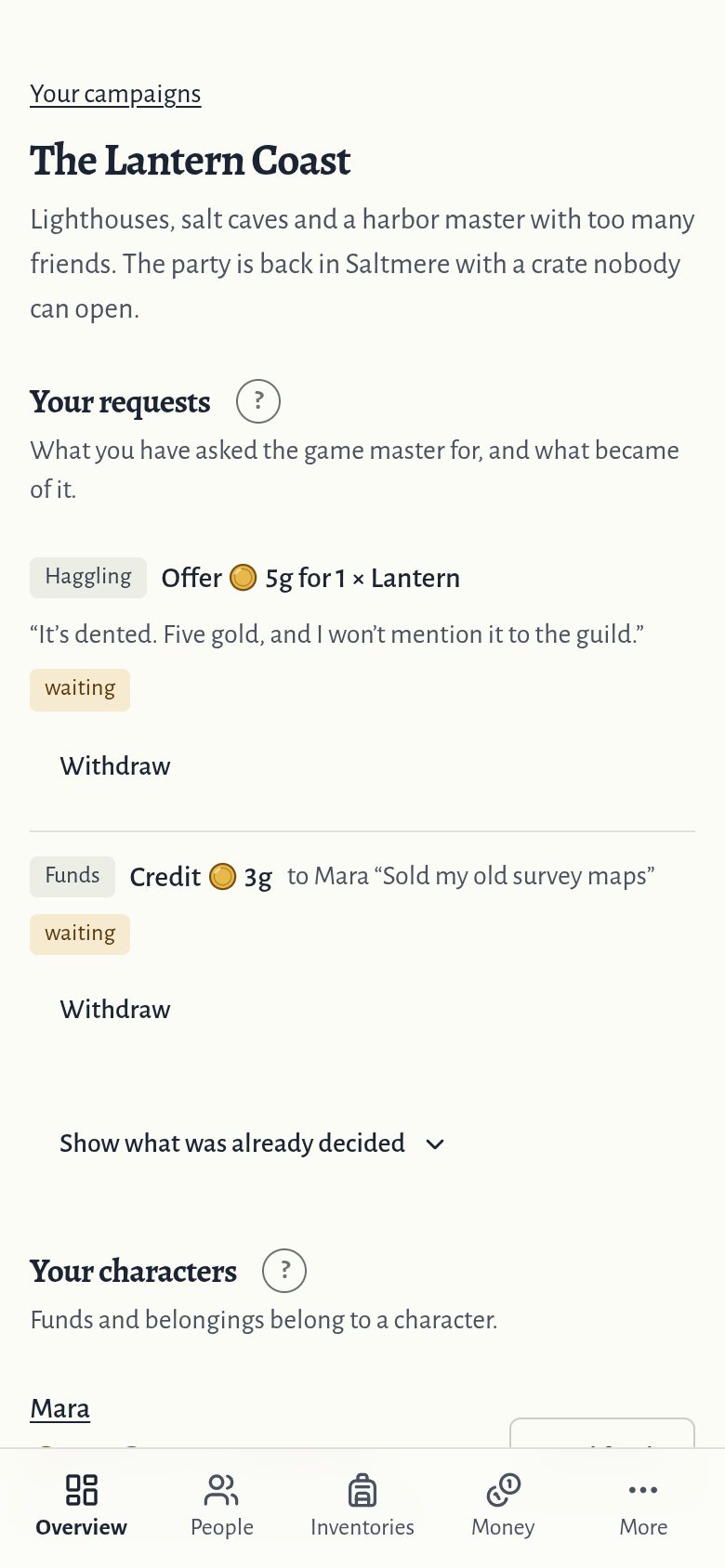
Asking for money, haggling, and some moves wait for the game master. The Overview shows them under “Your requests”.
While a request waits, “Withdraw” takes it back. Once approved, it has already happened.
More in the help: Requests to the game master
9What the others see
What your character carries and owns is private: only you and the game master see it.
On its page, under “What the party may see”, let the party see your belongings, your money, or both. “Hide from the party” keeps one thing out of sight.
More in the help: Letting the party look
10From here
The help covers everything in detail, and “Support and feedback”, at the foot of every page, reaches us.
More in the help: Getting started
The other quick start: Quick start for game masters