Quick start for game masters
Set up a campaign, invite your players and run your first session with Hoardwyn, in about fifteen minutes.
Read it online, with links: hoardwyn.com/quick-start/game-master
1Make an account
- On hoardwyn.com, choose “Create an account” and enter your email address and a password.
- Enter the six-digit code we email you, then sign in.
- Choose a display name. It is what your players see; your email address is never shown to anyone.
Players never pay. The free plan runs one campaign; the paid plans run more, and larger ones.
More in the help: Getting started, Plans, payments and gift codes
2Create the campaign
- On “Your campaigns”, choose “New campaign” and give it a name.
- The campaign opens on its Overview, with a short checklist of first steps: the next two sections of this quick start.
Ran a campaign here before? “Start from” brings along what you choose of it: its coins, its catalog, its shops and NPC inventories, and an invitation to its players. It comes with the paid plans.
More in the help: Setting up a campaign
3Define the money
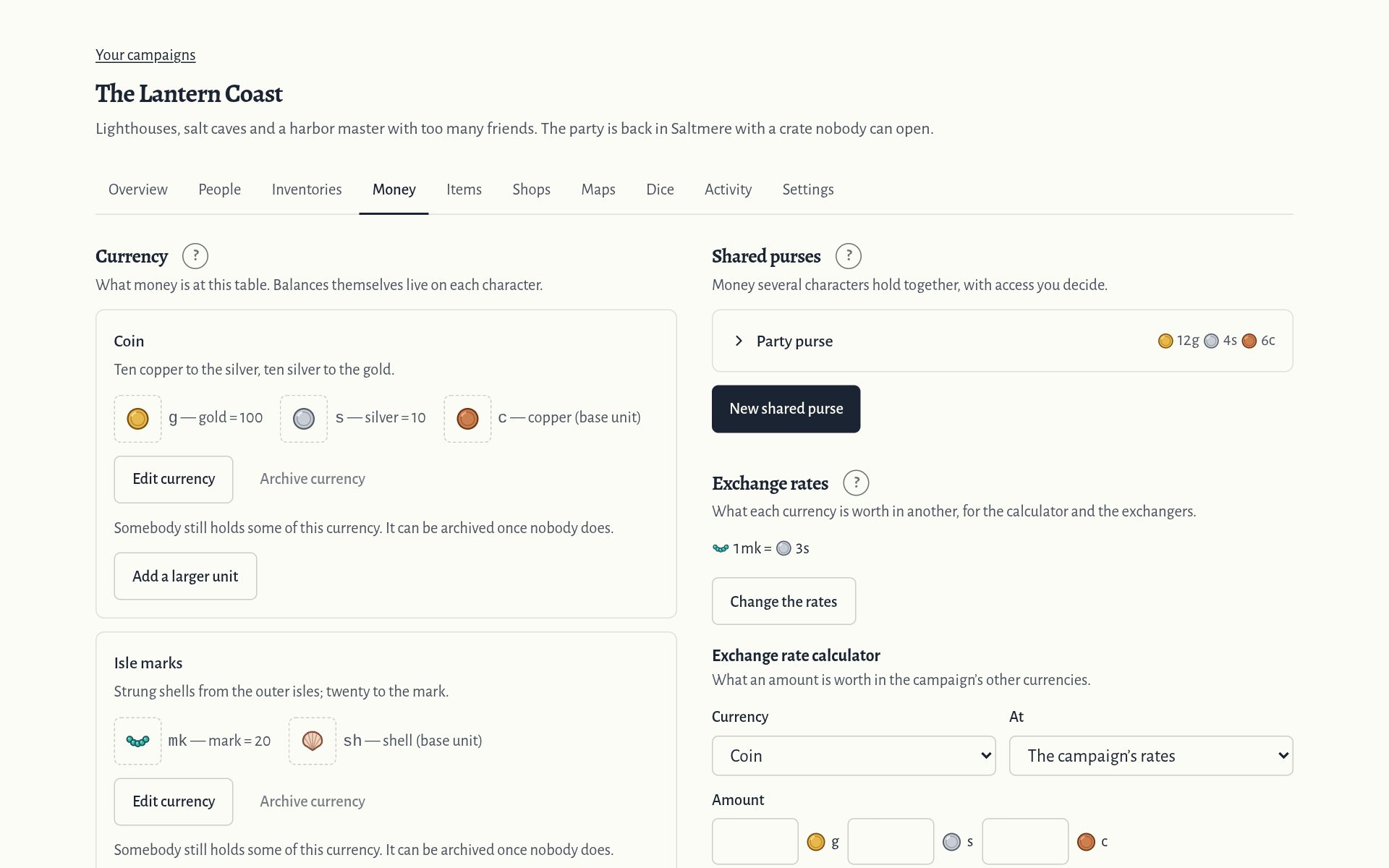
- Under Money, choose “New currency”. Name the smallest unit you count in, with a short code shown beside numbers, like “copper” and “cp”.
- With “Add a larger unit”, add bigger coins, each worth a whole number of the smallest one: silver worth 10, gold worth 100.
Every amount is kept as an exact whole number of the smallest unit, so nothing is ever rounded away.
Have your coins in a spreadsheet already? Under “Spreadsheets”, download a template and import it.
More in the help: Setting up a campaign, Money as game master
4Invite your players
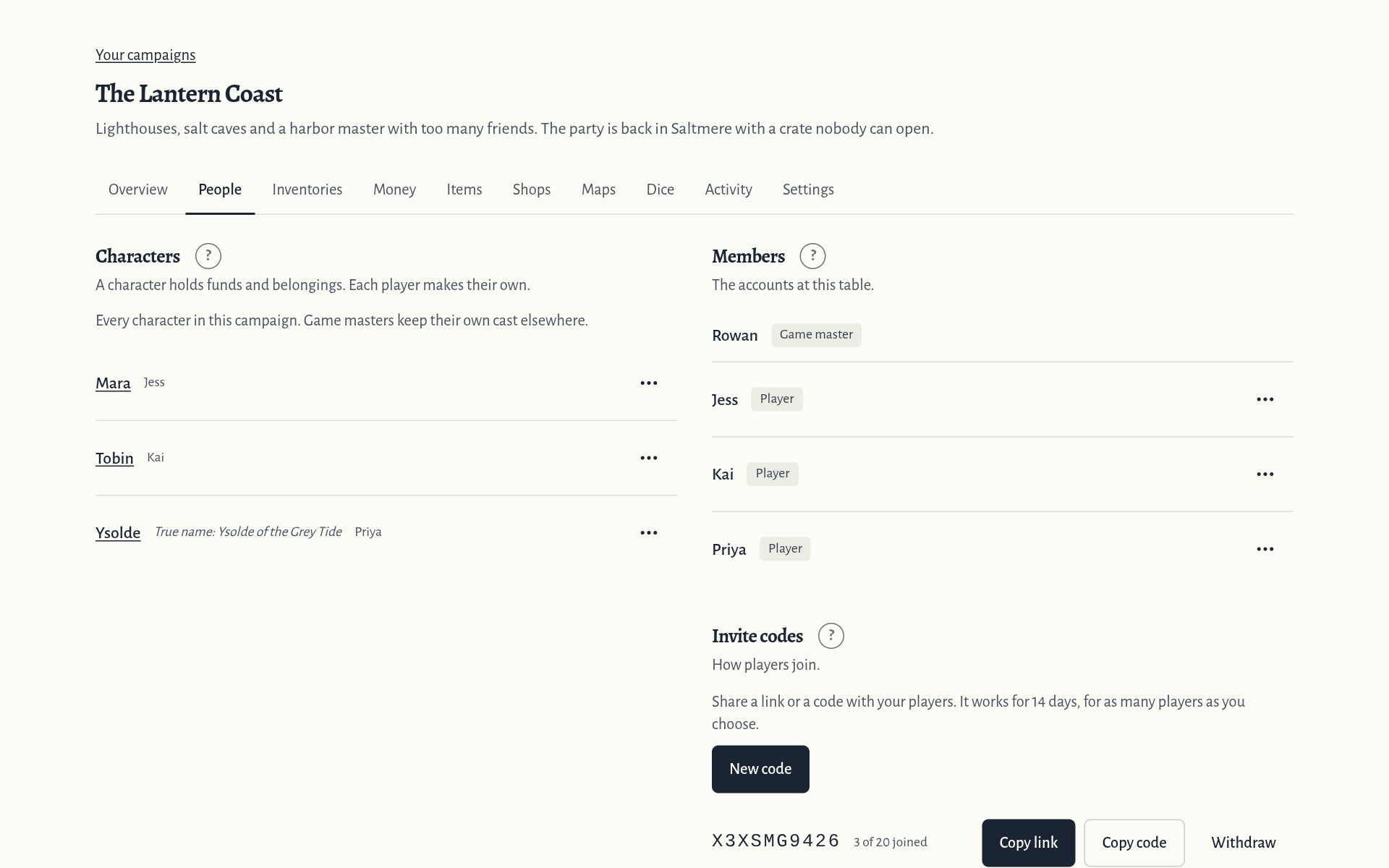
- Under People, choose “New code” and say how many players will join with it.
- Choose “Copy link”, or “Share” on a phone, and send the link to your players. Following it, they make an account if they need one, and join.
- Each player names a character as they join. Money and belongings belong to characters, so a player with two characters keeps them apart.
More in the help: Setting up a campaign
5Fill the catalog
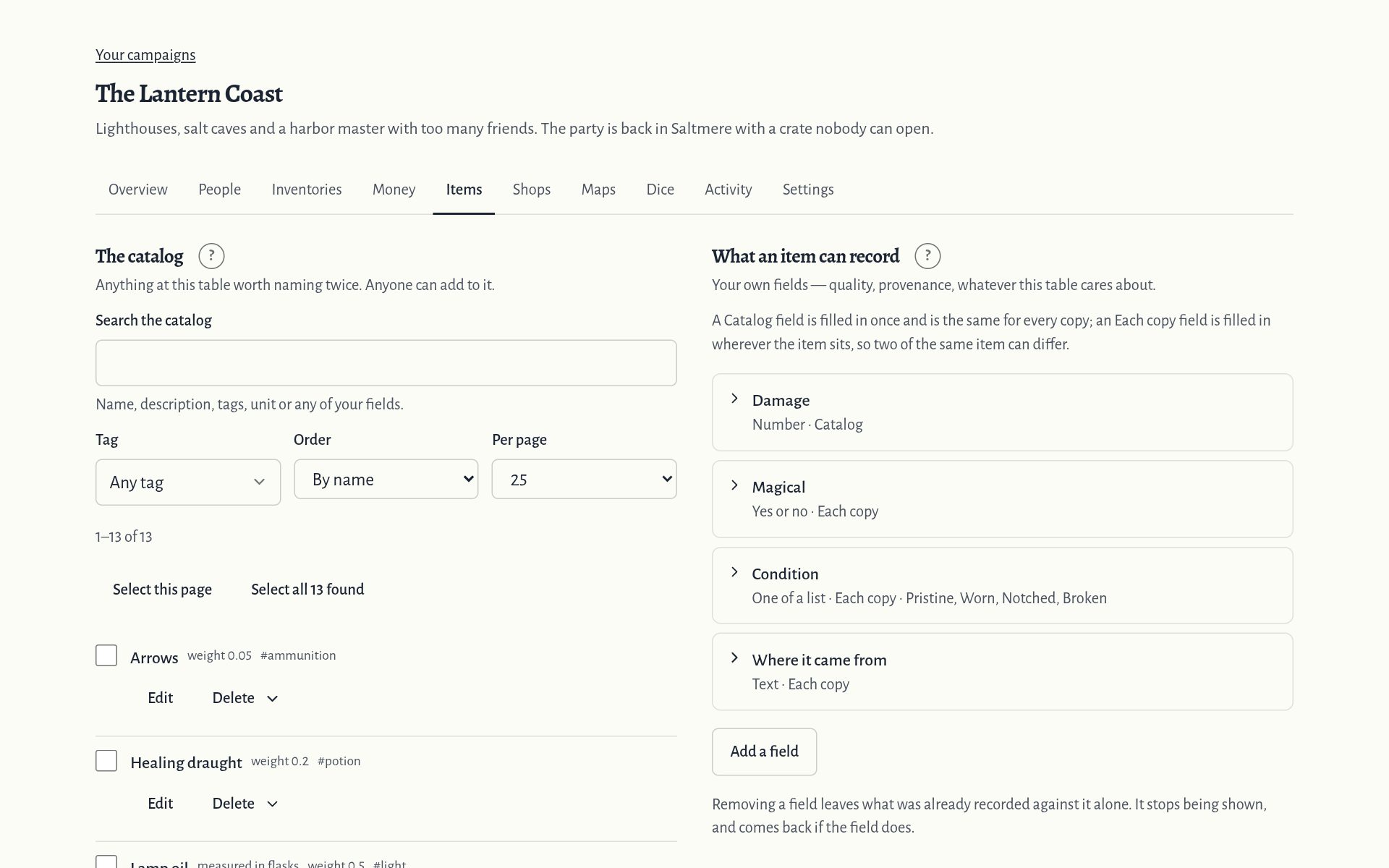
Items holds the catalog: anything at your table worth naming twice. Choose “Catalog an item” to add one, with a unit and a weight if you like.
Under “What an item can record”, add the fields your game cares about, such as damage, charges or condition.
A long list is quicker from a spreadsheet: “Download a template”, fill it in, and import it.
Players can add to the catalog too. Only you change or delete what is in it.
More in the help: The catalog and item fields
6At the table
Hand out rewards on a character’s page with “Adjust funds”: it applies at once, with your note.
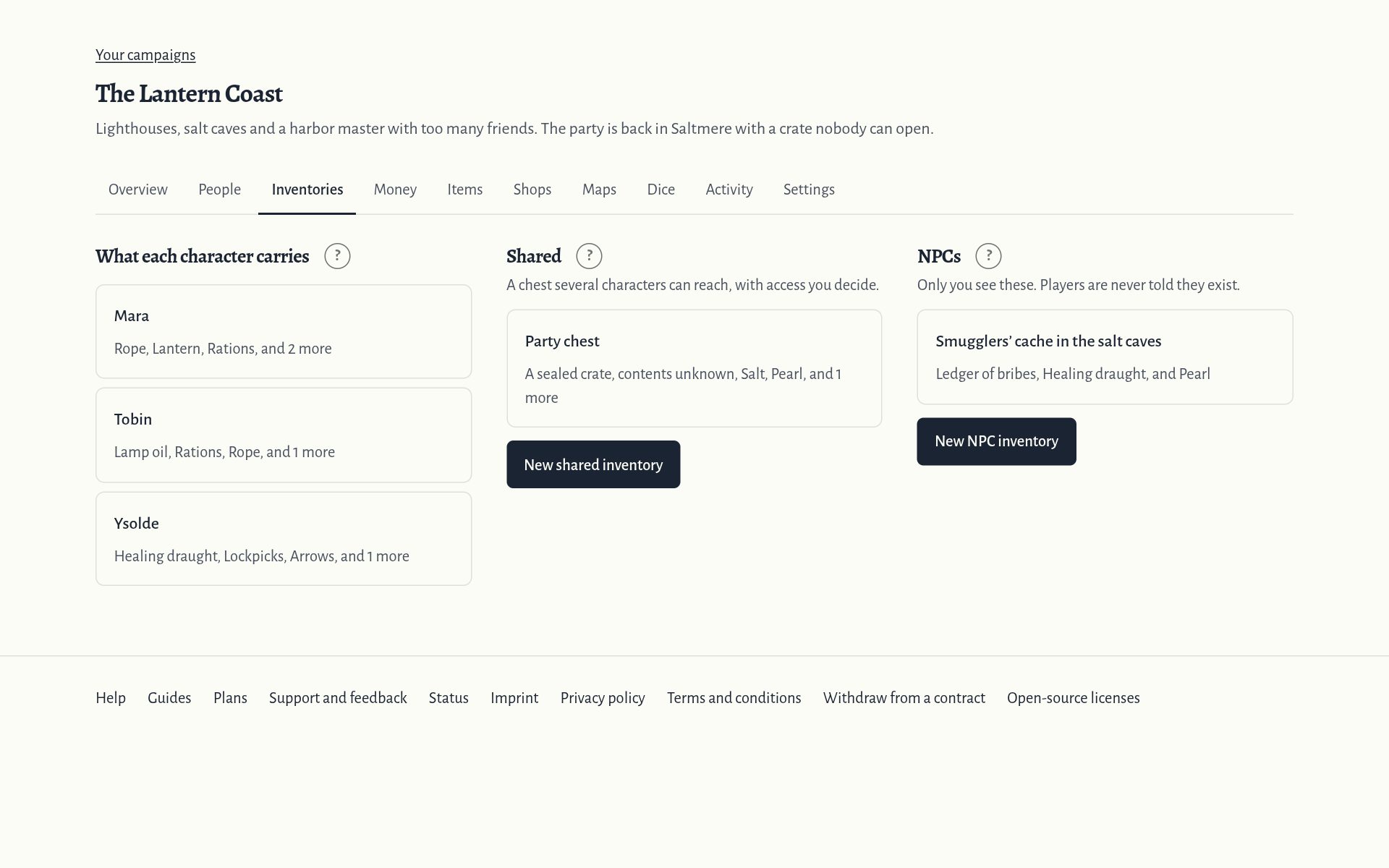
Inventories shows every inventory in the campaign. “New NPC inventory” keeps count of what the players must not see, such as a rival’s hoard.
“Side by side” shows two inventories next to each other: drag the loot across, or select it and move it.
The Dice tab rolls for everyone to see. Roll behind the screen, and the players see only that you rolled.
More in the help: Inventories as game master, Money as game master, Rolling dice
7Decide what players ask for
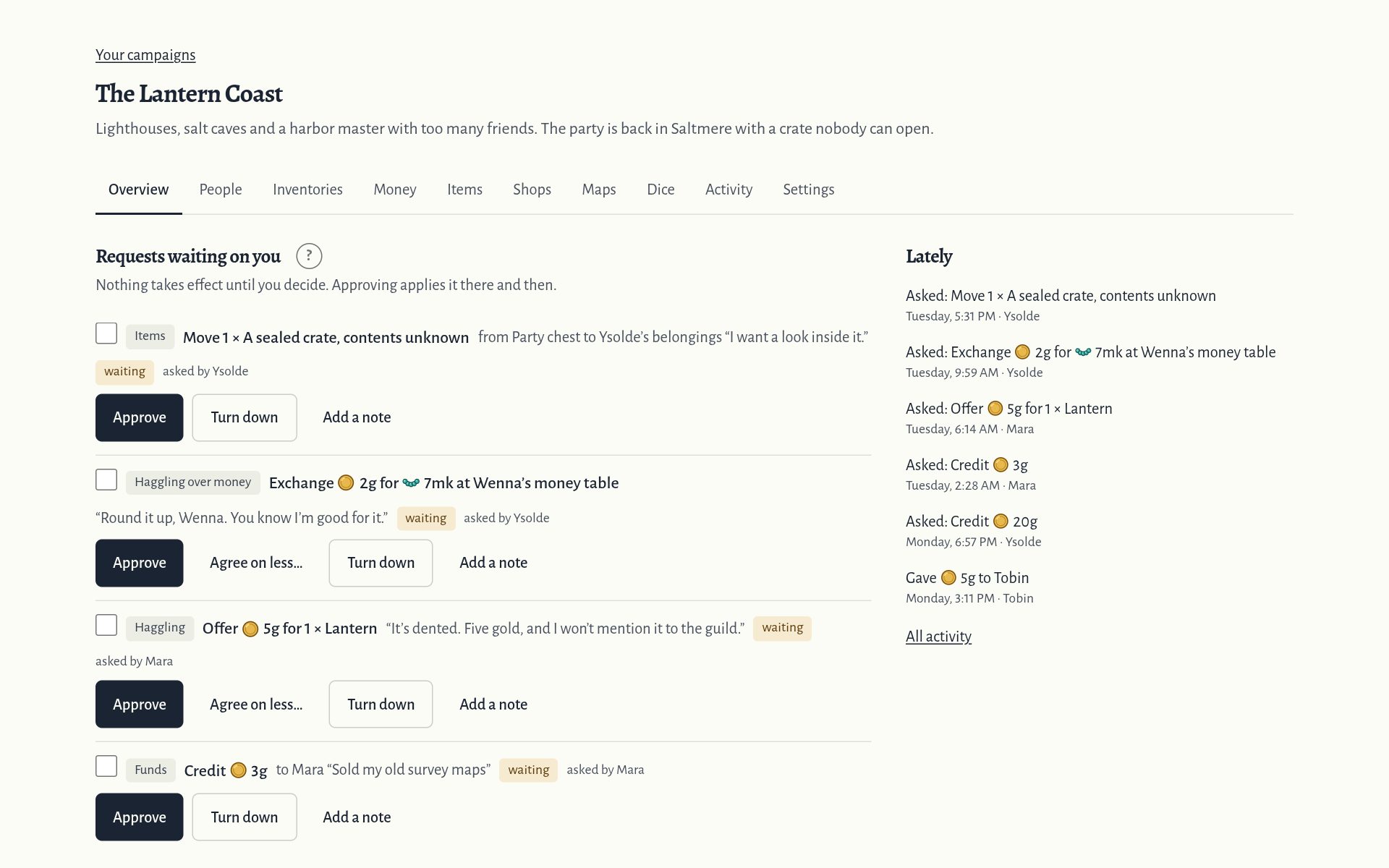
Some things wait for you: money a player asks for, an offer at a shop, taking from a chest they may only look into. They wait under “Requests waiting on you” on the Overview.
“Approve” applies a request at once, and “Turn down” refuses it. Either way, add a note the player reads.
For a haggled purchase, “Agree on less…” names a lower price. “Approve selected” decides many at once.
More in the help: Deciding requests
8Open a shop
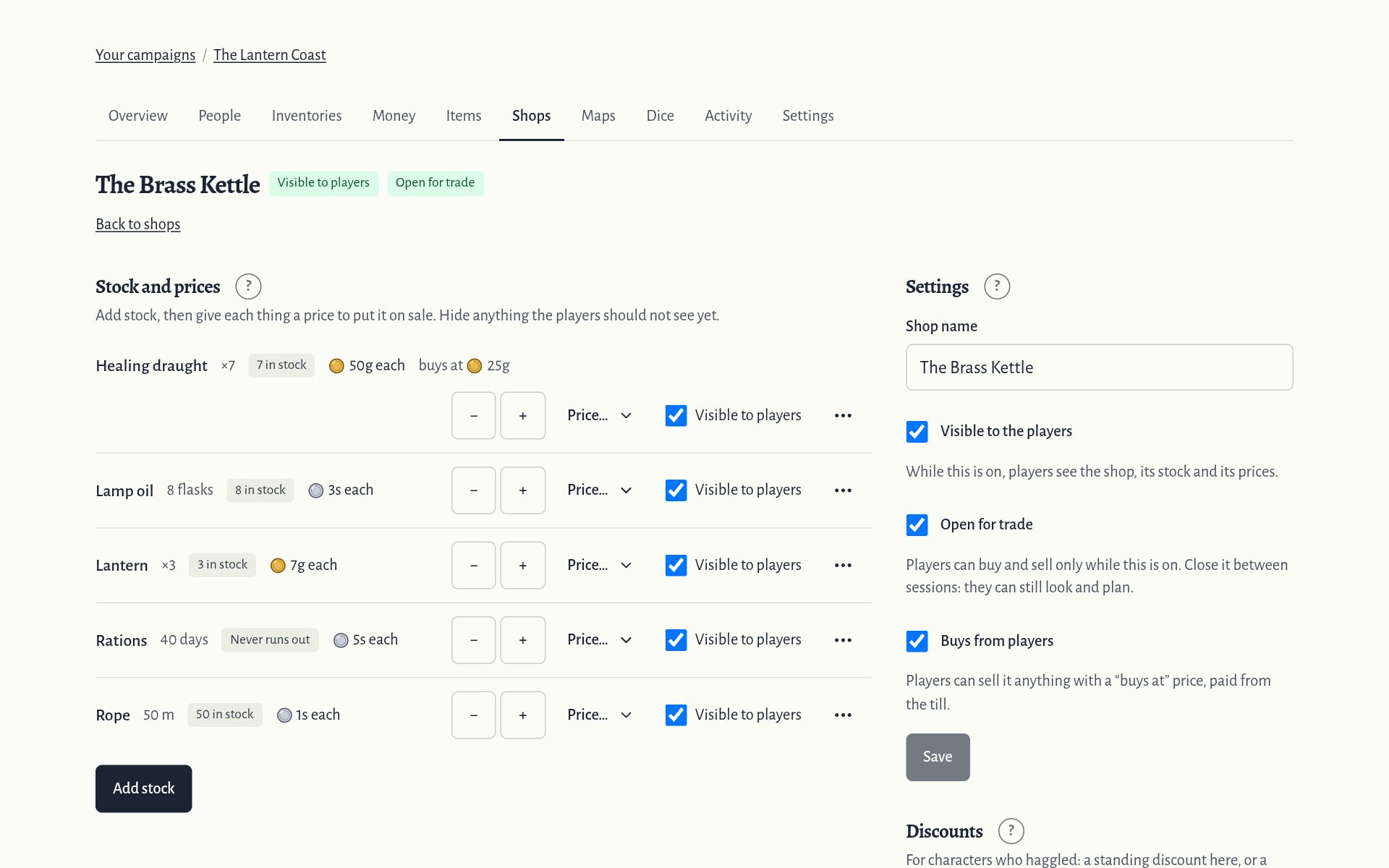
Under Shops, choose “New shop”. “Add stock”, then “Price…” on a line to put it on sale.
“Visible to the players” shows the shop. “Open for trade” lets them buy, and “Buys from players” lets them sell. Between sessions, close it: they can still look and plan.
Under “Discounts”, give a character who haggled well a standing percentage off at this shop.
More in the help: Running shops
9Keep the record straight
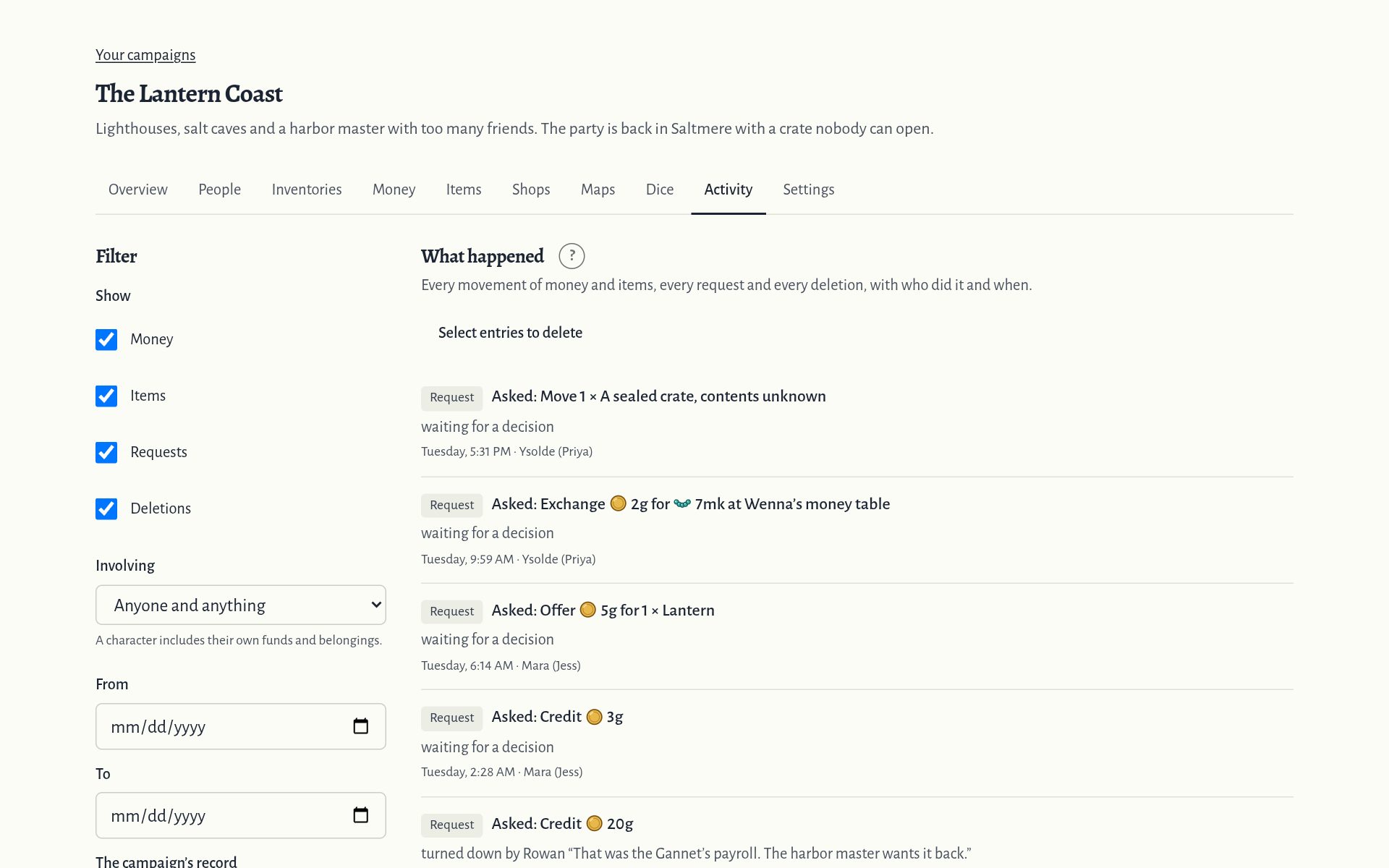
Activity lists every movement of money and items, and every request, with who did it and when.
Nothing is changed after the fact. A mistake is put right by a new movement, so the statement tells the whole story.
Something entered twice? Delete it from the menu beside the entry, with a reason; “Select entries to delete” does many at once. Under “Deleted entries”, Restore puts them back.
More in the help: The campaign’s activity, Deleted entries
10From here
Want to try it first? The demo gives you this campaign to play with, as its game master or as a player, without an account.
The help covers everything in detail, and “Support and feedback”, at the foot of every page, reaches us.
More in the help: Getting started
The other quick start: Quick start for players